Power Apps Code Apps: A Developer's Guide to Getting Started
Power Apps Code Apps let you build full React+TypeScript applications that run inside the Power Platform with access to Dataverse, Copilot Studio, and Microsoft 365 connectors. Here is what the setup actually looks like.

If you have built canvas apps or model-driven apps in Power Apps before, Code Apps feel like a different world. Instead of the low-code designer, you get a standard React + TypeScript + Vite project. You write real components, manage real state, and deploy through the pac CLI.
The key difference from a regular React app: your application runs inside the Power Platform runtime and gets automatic access to connectors — the same ones available in Power Automate and canvas apps. That means Office 365 mail, SharePoint, Jira, Copilot Studio, Dataverse, and hundreds of other services are available through generated TypeScript service classes.
📖 Official docs: Power Apps Code Apps Overview · Architecture
A Power Apps Code App is built on:
| Layer | Technology |
|---|---|
| Runtime | @microsoft/power-apps SDK |
| Build | Vite + @microsoft/power-apps-vite plugin |
| UI | React 19 + TypeScript |
| Data | Auto-generated service classes from connectors |
| Deploy | pac code push |
There is no custom framework to learn. If you know React, you know 90% of what you need.
Scaffold a new project from the official template and initialize it with the PAC CLI:
npx degit github:microsoft/PowerAppsCodeApps/templates/vite my-app
cd my-app
npm install
pac code init --displayname "My App"
This gives you a standard Vite project structure with the Power Apps plugin pre-configured.
📖 Full walkthrough: Create a code app from scratch
The only non-standard piece is the Vite plugin:
import { defineConfig } from 'vite';
import react from '@vitejs/plugin-react';
import { powerApps } from '@microsoft/power-apps-vite';

export default defineConfig({
  plugins: [react(), powerApps()],
});
The powerApps() plugin handles local authentication redirects and connector routing during development.
The SDK provides getContext() from @microsoft/power-apps/app to retrieve runtime information like the current user or environment details. This is not required — your generated service classes work without it.
import { getContext } from '@microsoft/power-apps/app';

// Example: get runtime info for user greeting or environment logic
const context = await getContext();
Use it when you need user identity or environment metadata, not as an initialization step.
This is where Power Apps Code Apps really shine. Instead of writing REST clients manually, you generate typed service classes from connectors:
pac code add-data-source
This opens an interactive prompt where you select from available connectors — Office 365 Outlook, SharePoint, Jira Cloud, Copilot Studio, and many more. The CLI generates TypeScript files in src/generated/services/ with fully typed methods.
📖 Official guide: Connect your code app to data
For example, after adding Office 365 Outlook, you get:
import { Office365OutlookService } from './generated/services/Office365OutlookService';

// Fetch emails
const emails = await Office365OutlookService.GetEmailsV3({
  folderPath: 'Inbox',
  top: 20,
});

// Get today's calendar events
const events = await Office365OutlookService.GetEventsCalendarViewV3({
  calendarId: 'Calendar',
  startDateTimeUtc: todayStart,
  endDateTimeUtc: todayEnd,
});
No API keys, no OAuth dance, no token management. The Power Platform runtime handles all of that.
Here is a practical pattern I recommend when building your initial UI: start with mock data, then swap in real services.
The reason: before you run pac code add-data-source, the generated service files do not exist yet. Your component structure, layouts, and state management can be developed with mock data first, then swapped to real connectors once you add them.
Create your data hooks with a clean interface:
// hooks/useTickets.ts
export const useTickets = () => {
  const [tickets, setTickets] = useState<Ticket[]>(MOCK_TICKETS);
  const [loading, setLoading] = useState(false);
  return { tickets, loading };
};
Later, replace the mock data with real service calls:
export const useTickets = () => {
  const [tickets, setTickets] = useState<Ticket[]>([]);
  const [loading, setLoading] = useState(true);

  useEffect(() => {
    JiraCloudService.SearchForIssuesUsingJql({ jql: 'assignee = currentUser()' })
      .then((result) => setTickets(mapJiraToTickets(result.issues)))
      .finally(() => setLoading(false));
  }, []);

  return { tickets, loading };
};
The components consuming the hook never need to change.
npm run dev         → Starts local Vite server
→ Open "Local Play" URL  → App runs on apps.powerapps.com with real connectors
npm run build       → Production bundle
pac code push       → Deploy to Power Platform
This is one of the best parts: npm run dev gives you a Local Play URL that opens your app on apps.powerapps.com, pointing back to your local dev server. You are running inside the real Power Platform host with full access to all configured connectors and real data. Hot module replacement works — you edit code locally and see changes immediately, tested against live Office 365, Jira, or any other connected service.
Note: Since December 2025, Chrome and Edge may block requests from public origins to local endpoints. You might need to grant local network access permissions in your browser.
To give concrete context: I built an ITSM Agent Dashboard as a Code App that combines:
- Jira Cloud tickets — queried via JQL, with full detail panels including ADF comment rendering
- Outlook emails — inbox with reading pane, quick actions, and AI-drafted replies
- Calendar events — daily schedule from Office 365
- Copilot Studio chat — floating AI assistant panel for contextual help & search
- Configurable dashboards — users can configure their own dashboards with config file inside of personal oneDrive
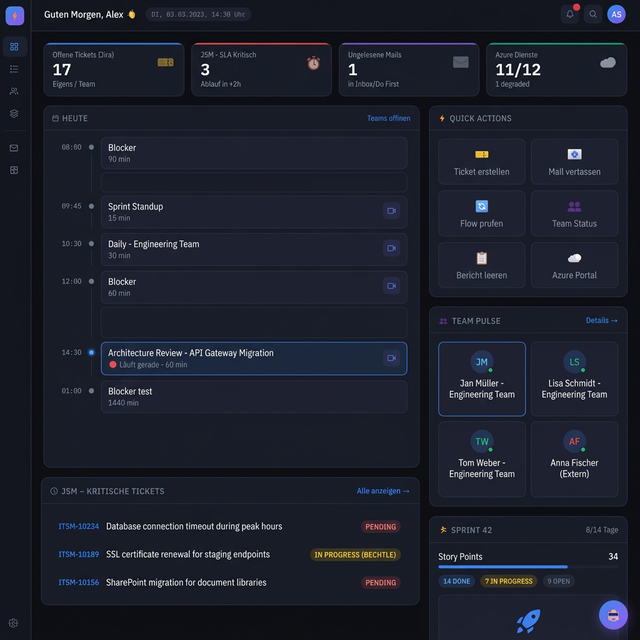
All of this in a single React application, deployed as a Power App, accessible to anyone in the organization without additional authentication setup.
The configurable dashboards feature deserves a closer look. Instead of storing user preferences only in localStorage (which is device-specific), I sync the configuration to each user's OneDrive AppRoot folder. Settings follow the user across devices without a dedicated backend.
The idea came from Guido Zambarda's blog post about storing SPFx app configuration in OneDrive via Microsoft Graph. I adapted the same idea for Power Apps Code Apps.
The key insight: the Office 365 Users connector exposes an HttpRequest method that can forward Microsoft Graph calls. The official documentation describes /me and /users/<userId> as the supported roots and primarily documents Outlook-oriented resources such as messages, mailFolders, events, calendar, calendars, outlook, and inferenceClassification, but in practice me/drive also works for OneDrive file operations:
import { Office365UsersService } from '../generated/services/Office365UsersService';

const ONEDRIVE_CONFIG_URI =
  'https://graph.microsoft.com/v1.0/me/drive/special/approot:/myapp-config.json:/content';

// Read config from user's OneDrive
const response = await Office365UsersService.HttpRequest(
  ONEDRIVE_CONFIG_URI,
  'GET',
  '', '', '', '', '', '', ''
);

if (response.success && response.data) {
  const remoteConfig = typeof response.data === 'string'
    ? JSON.parse(response.data)
    : response.data;
  // Merge with defaults and apply...
}
The full ConfigContext still follows a three-layer strategy:
- Boot: Load from
localStorageinstantly (fast startup, no waiting for network) - Hydrate: Fetch persisted config from OneDrive in the background, deep-merge with defaults, update state
- Save: On every config change, write to both
localStorageand OneDrive
Deep merging is critical. When you ship a code update with new config fields, an older OneDrive config file will not have those keys. Without deep merge, new defaults get silently lost:
const mergeConfig = (incoming: Partial<ConfigType>): ConfigType => ({
  ...defaultConfig,
  ...incoming,
  jira: { ...defaultConfig.jira, ...(incoming.jira || {}) },
  mail: { ...defaultConfig.mail, ...(incoming.mail || {}) },
  copilot: {
    ...defaultConfig.copilot,
    ...(incoming.copilot || {}),
    prompts: {
      ...defaultConfig.copilot.prompts,
      ...(incoming.copilot?.prompts || {}),
    },
  },
  // ... other nested sections
});
The practical takeaway: Office365UsersService.HttpRequest is more capable than the narrow examples in the docs suggest, and it is enough to support OneDrive-backed per-user configuration in a Code App.
Code Apps make sense when:
- You need complex UI that the canvas designer cannot express
- You want real developer tooling — TypeScript, hot reload, version control
- You need to combine multiple connectors in a single view
- Your team already knows React
They are probably overkill for simple forms or basic CRUD interfaces where canvas apps still work fine.
But here is what I think: Code Apps are the beginning of the end for canvas apps as we know them. Canvas apps were built for citizen developers — drag-and-drop, Power Fx formulas, limited customization. They served their purpose, but they hit a ceiling fast. The moment you need a custom list view, a chat panel, a master-detail layout, or any kind of state management, you are fighting the platform instead of building with it.
Code Apps remove that ceiling entirely. You get the full React ecosystem — any npm package, any design pattern, any UI library — while keeping the one thing that made canvas apps valuable: the connector infrastructure. Authentication, token management, consent flows — all handled by the platform. You just call Service.Method() and get data.
And here is what enterprise architects care about: you inherit the entire Power Platform governance stack without writing a single line of security code. DLP policies control which connectors can be used together. Managed environments enforce sharing limits. Conditional access policies apply automatically. Cross-tenant restrictions, app quarantine, consent suppression for custom connectors, and full ALM support with solutions, environments, and managed deployments — all managed by your IT admins through the Power Platform Admin Center, not by you in your React code. For a developer, this means you can build a dashboard that pulls data from Jira, Outlook, and Copilot Studio, and your security team can govern it with the same tools they already use for every other Power App in the organization.
One honest disclaimer: Code Apps require a Power Apps Premium license (or pay-as-you-go) for end users. That is a real cost. But consider what you are getting: a developer can build a production-quality, enterprise-ready internal tool in hours, not weeks — with authentication, governance, and 1,000+ connectors included out of the box. And you do not even need deep React expertise. With AI-assisted coding tools, even developers who have never touched React before can scaffold, iterate, and ship a fully functional Code App. This is just the beginning — the tooling will only get easier from here. The time a citizen developer would spend fighting canvas app limitations easily justifies the license cost. And here is the bigger thought: at this speed and quality level, you are not just replacing canvas apps. You could start replacing third-party SaaS tools with custom-built alternatives that fit your organization exactly, governed by your own platform, at a fraction of per-seat SaaS pricing. That is a whole different conversation — and maybe a future article.
With AI-assisted development making React more accessible to non-traditional developers, the argument for canvas apps gets weaker every month. I would not be surprised if Code Apps become the default recommendation for new Power Apps projects within the next year or two.
In the next article, I will cover the tricky part: integrating Copilot Studio and the undocumented bugs you will hit along the way.
- Power Apps Code Apps Overview
- Create a code app from scratch
- Connect your code app to data
- Code Apps Architecture
- System limits and configuration
This article is part of a three-part series on building production applications with Power Apps Code Apps.
Comments