Displaying SharePoint Version History in Power Apps
How to retrieve SharePoint list item version history with the REST API, process it in Power Automate, and display only changed values inside Power Apps.

SharePoint lists are often the operational backbone behind approval processes, request handling, and lightweight business applications. One limitation appears quickly when you build on top of them with Power Apps: the standard SharePoint connector only exposes the current state of a list item, not its full version history.
If users need transparency about who changed what and when, you need another path.
This article shows a practical pattern:
- Keep the normal SharePoint data connection in Power Apps.
- Use Power Automate to call the SharePoint REST API.
- Parse the response and return version data to the app.
- Store that data in a collection.
- Render only changed values in a gallery.
Start with the normal SharePoint connection inside Power Apps.
- Open the app in Power Apps Studio.
- Add
SharePointas a data source. - Connect the app to the correct site and list.
This part is standard, but it is still necessary because the app needs the current list item context. The version history itself will come from a separate flow.
The key is a flow triggered by Power Apps that sends an HTTP request to SharePoint.
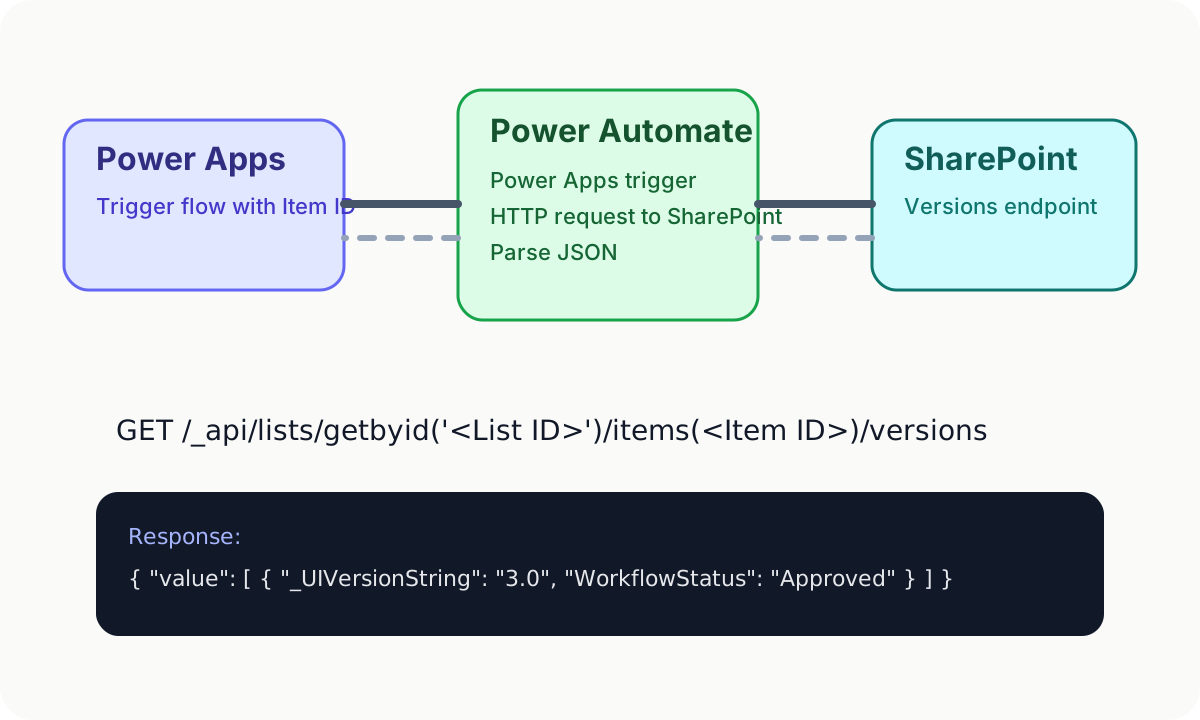
Create a new flow with the Power Apps trigger and add the SharePoint action Send an HTTP request to SharePoint.
Use a GET request against the versions endpoint:
/_api/lists/getbyid('<List ID>')/items(<Item ID>)/versions
Replace:
<List ID>with the target list ID<Item ID>with the selected SharePoint item ID passed from Power Apps
After the HTTP request:
- Add a
Parse JSONaction. - Use sample output from a test run to generate the schema.
- Return the parsed result back to Power Apps.
That gives you a structured payload instead of trying to work with raw JSON inside the app.
Before you bind anything to the UI, make sure the flow returns only the values you actually need. In most cases, you do not want the entire response body exposed directly to controls.
Useful fields usually include:
- Version identifier
- Title
- Editor or creator references
- Modified date
- Workflow status
- Any business columns you want to compare over time
Keeping the flow output focused makes the app easier to maintain and reduces parsing friction later.
Once the flow returns the version payload, you can move it into a collection in Power Apps. A common pattern is to execute this when the detail screen becomes visible.
Example:
ClearCollect(
    collItemHistory,
    ForAll(
        Table(
            ParseJSON(
                FlowGetItemHistory.Run(
                    SharePointIntegration.SelectedListItemID
                ).itemhistory
            )
        ),
        {
            id: Value.id,
            Title: Text(Value.Title),
            WorkflowStatus: Text(Value.WorkflowStatus),
            _UIVersionString: Value._UIVersionString
        }
    )
)
What this does:
ClearCollectresets and fills the target collection.FlowGetItemHistory.Run(...)calls the Power Automate flow.ParseJSONconverts the flow response into typed values Power Apps can work with.ForAllmaps each version entry into a cleaner structure for the UI.
The exact property names depend on your SharePoint list. Adjust the mappings to match your environment.
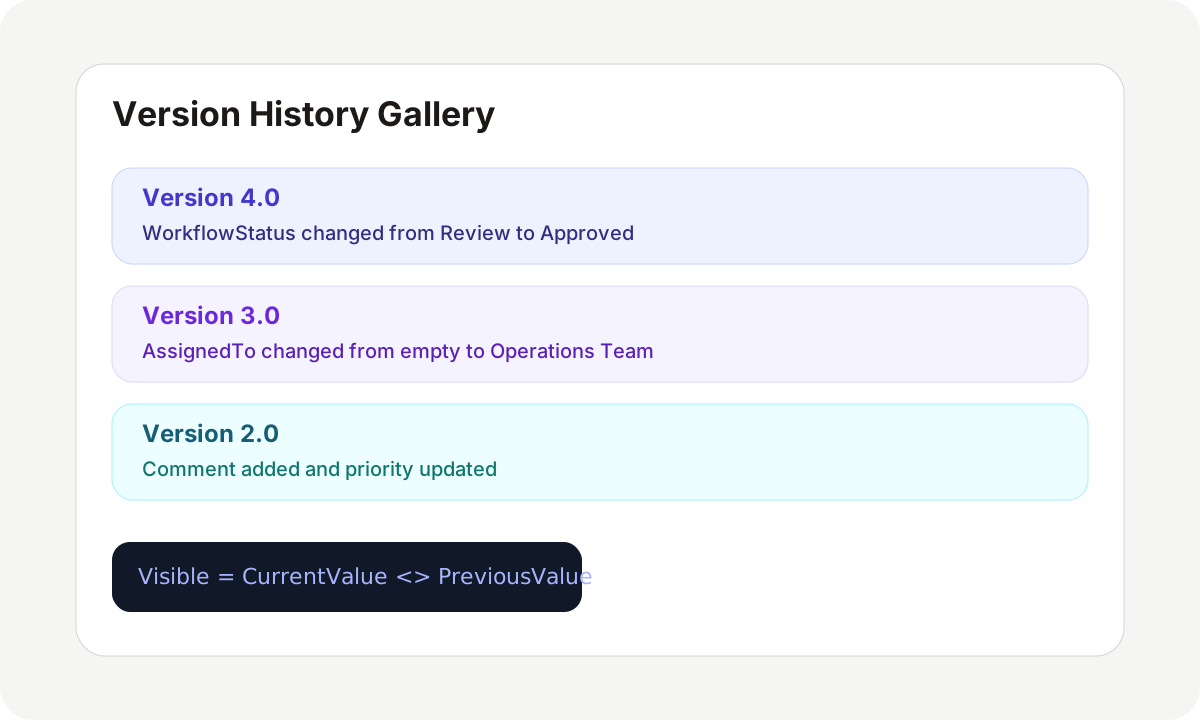
At this point, you can bind a gallery to collItemHistory. The next improvement is what makes the screen actually useful: only show fields that changed between one version and the previous one.
For a field like WorkflowStatus, the Visible property can compare the current version with the previous one:
If(
    Text(ThisItem.WorkflowStatus) <>
        Text(
            First(
                Filter(
                    collItemHistory,
                    _UIVersionString = ThisItem._UIVersionString - 1
                )
            ).WorkflowStatus
        ),
    true,
    false
)
This logic works as follows:
ThisItemis the current row in the gallery.Filter(...)finds the previous version.First(...)returns that previous record.- The formula compares the current field value with the prior one.
- If the values differ, the control becomes visible.
You can reuse the same pattern for other columns such as approvals, comments, assignments, or business-specific status fields.
There are a few details worth watching in real projects:
- Version-heavy lists can generate large payloads, so test with realistic data volumes.
- Internal field names in SharePoint do not always match display names.
SelectedListItemIDneeds to be validated carefully when moving from a test list to a production list.- Parsing JSON in Power Apps is workable, but cleaner contracts from Power Automate are easier to support over time.
The more critical the process, the more valuable it is to normalize the response before the app touches it.
If you need auditability or user-facing transparency in a Power App backed by SharePoint, version history is worth exposing properly. The standard connector is not enough on its own, but the combination of SharePoint REST API, Power Automate, and a structured collection in Power Apps gives you a reliable solution.
The important part is not just retrieving old versions. It is presenting the history in a way that helps users understand actual change.
Comments